Praxivara
 Chrome extension




New in Praxivara
Praxivara now makes video, music, voiceovers and sound effects, and it edits the footage you already have. Describe what you want in plain words, the way you would brief a freelancer, and you get back a finished video or a mixed audio track, saved to your Drive.
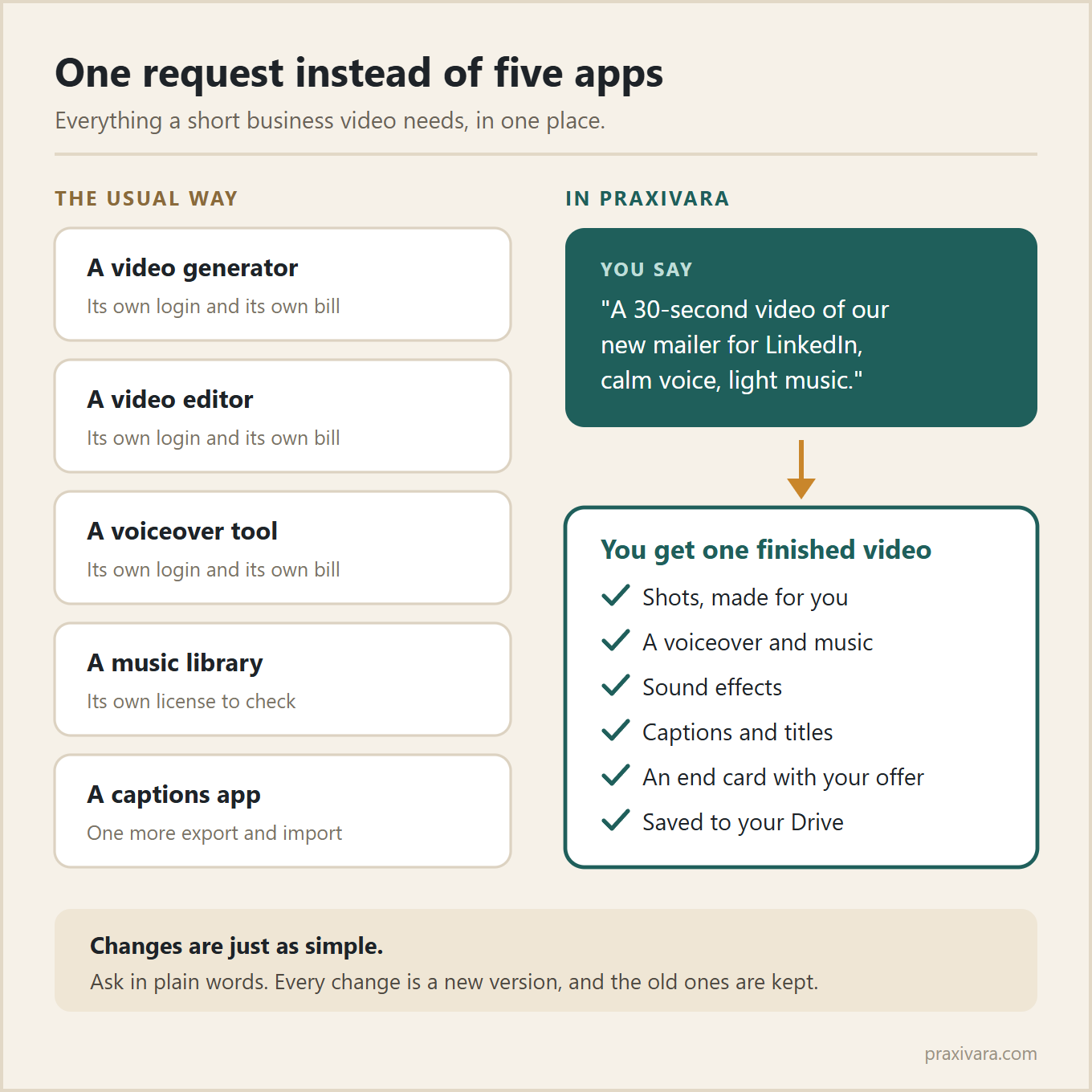
Almost every small business knows it needs more video. A short product clip for the website. A 20-second Reel about a new service. A one-minute explainer for the quote page. A welcome video for new staff. The idea is rarely the problem.
The problem is the stack. One app to make footage and another to edit it. Then a voiceover tool, a music library with its own license, and something else for captions, each with its own login and its own bill. So the video gets pushed to next quarter.
Now it all lives inside the Praxivara you already use to run email, invoices, agents and your website. One request covers the whole job, from the first shot to the captions.
What is new
- Make a video from a sentence. It plans the shots, makes each one, adds a voiceover, music, sound effects, titles and captions, and joins it all into one finished video.
- Edit the footage you already have. Trim it, reorder it, restyle it, turn it vertical for phones, add your logo, or cut a long recording down to its best moment.
- Make original music and sound. Music from a description of the mood, with or without lyrics, plus sound effects and background ambience.
- Make voiceovers and clean up audio. Natural voices that read your script in many languages, and an Audio Studio for cleaning, editing and mixing sound.
What you can ask for
| What you need | What you might ask | What you get back |
|---|---|---|
| A product video | "A 30-second video of our new insulated mailer, for LinkedIn." | A square video with product shots, a voiceover, music and captions. |
| A social clip | "A 20-second vertical Reel about our same-day service." | A vertical cut with large captions, built for phones. |
| A website video | "A calm 8-second background video for our homepage." | A silent loop that repeats without a visible jump. |
| A highlight clip | "Find the best 30 seconds of this webinar and make it a clip." | A short clip cut on whole sentences, with captions. |
| An audio ad | "A 30-second radio-style spot for our spring sale, with music." | A mixed track with the voice on top and music underneath. |
| Music for your videos | "Two minutes of upbeat acoustic music, no vocals." | An original instrumental track. |
How a video gets made
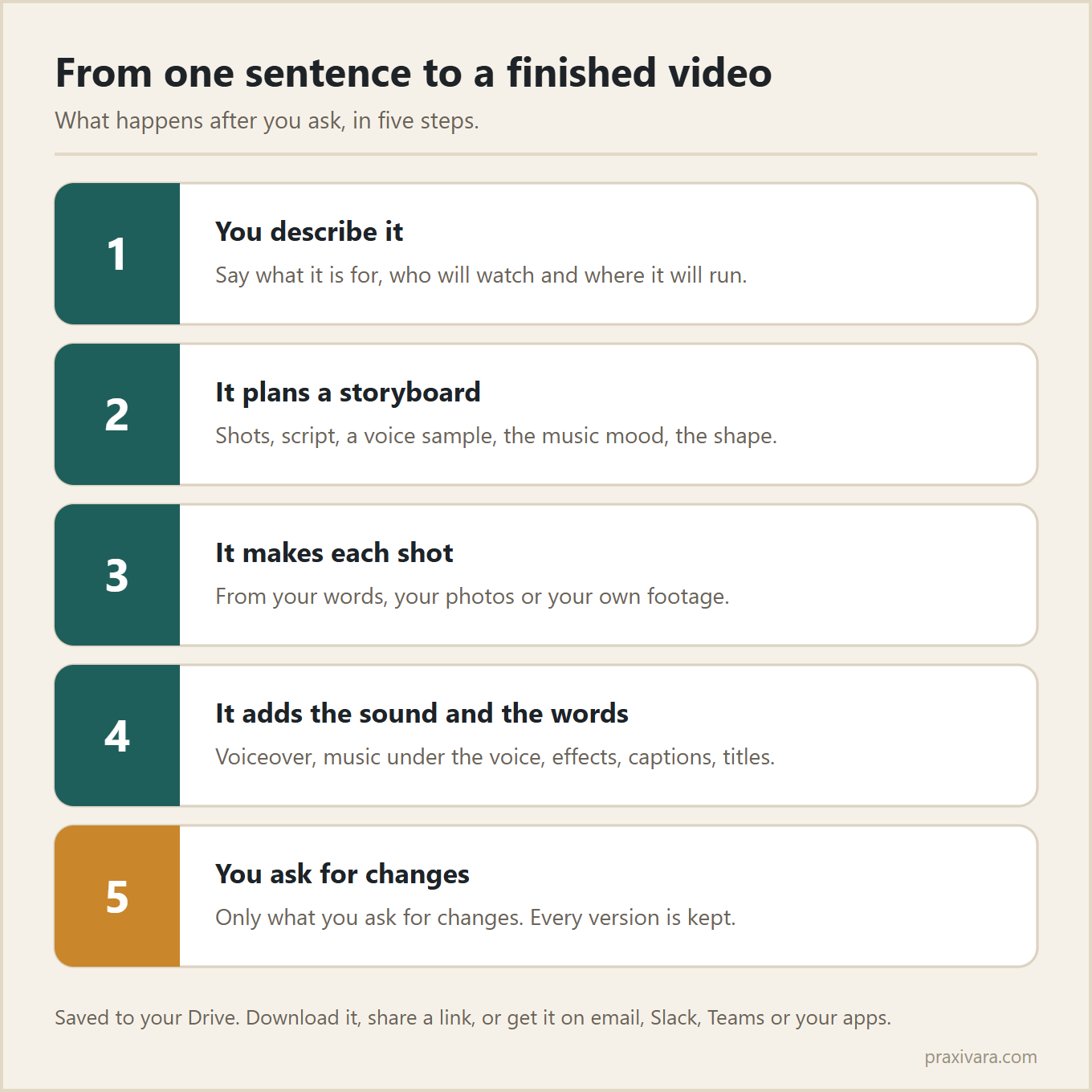
Ask in the assistant chat, or send a message from your phone. Say what the video is for, who will watch it and where it will be posted. Attach anything that helps, like your own clips, product photos, your logo or a written brief. If you want to talk the idea through first, just say so, and your assistant will plan it with you before anything is made.
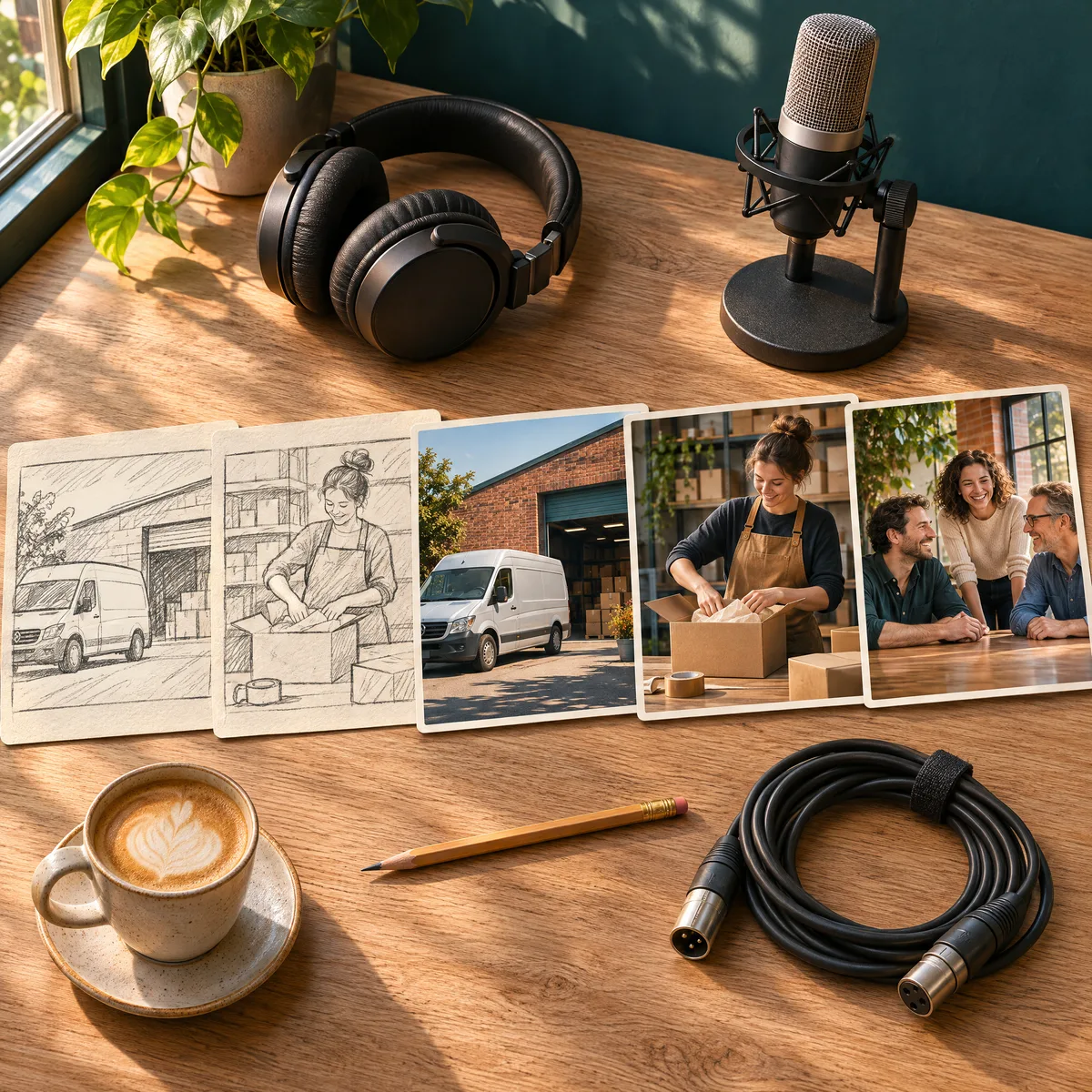
- It plans the video. A storyboard with the shots, the script, a voice sample, the music mood and the shape.
- It makes each shot. From your description, from a photo you gave it, or from your own footage, with the same product, people and setting looking consistent from shot to shot.
- It adds the sound. A voiceover reads your script, original music sits underneath, and sound effects land on the right moment.
- It finishes the cut. Large captions that are easy to read on a phone, titles, and an end card with your name and one call to action.
- You ask for changes in plain words. "Make the second shot brighter." "Shorter intro." It changes only what you asked for, and every version is kept so you can go back.
Open the studio from the video card to watch it come together, shot by shot. Quick actions cover the most common changes: replace a shot, restyle it, make it longer, trim it, or make a vertical or square version.
Edit the footage you already have
Most businesses are sitting on footage nobody ever finished: phone clips from jobs, a recorded webinar, a product demo. Send it from the chat, a messaging app or your Drive, and ask for what you want.
- The basics, by asking. Trim, reorder, join clips, speed up or slow down, and add soft crossfades.
- Find the best moment. Turn a long recording into a short clip of its strongest minute, cut on whole sentences.
- Reshape it for phones. Turn widescreen footage into a vertical version for Reels, TikTok and Shorts, with the subject kept in frame.
- Change the look. Restyle a shot, relight it, change the weather, or replace or remove something in the scene.
- Add your brand. Your logo, titles, name straps and an end card with your call to action.
- Captions and sound. Large captions burned into the picture, plus your own music or recorded voiceover on the timeline.
Music, voiceovers and sound effects
Sound is half of a good video. Praxivara makes all three, inside a video or on their own.
Voiceovers. Give it a script and pick from a library of natural voices, men and women of different ages and accents, and listen to each one first. Describe how a line should be read, like calm, upbeat or whispered. It speaks many languages, and it can re-voice a recording you already have.
Original music. Describe the genre, mood, tempo and instruments in ordinary words. Ask for an instrumental, or a song with your own lyrics or lyrics it writes. Then make it longer, redo one part or give it a new style. Anything from a short jingle to a track several minutes long.
Sound effects. Describe a sound and it makes it: a door chime, a cash register, rain on a window, a busy shop floor. Background ambience can loop without a jump.
The Audio Studio
For hands-on work, open any audio in the Audio Studio, from the card in the chat or from your Drive. Clean up a recording by removing noise, evening out the level, or keeping only the voice or only the music. Trim, fade and adjust the volume. Mix voice, music and effects on a timeline, and the music dips under the voice on its own. Every change is saved as a new version you can go back to. Download an MP3, or save a full-quality WAV to your Drive.
One video, every shape
A vertical Reel looks lost on a website, and a widescreen video looks cramped on a phone. Praxivara picks the shape for where the video will be watched.
| Where it will be watched | Shape |
|---|---|
| Instagram Reels, TikTok and YouTube Shorts | Vertical, 9:16 |
| LinkedIn feed | Square, 1:1, or a little taller at 4:5 |
| YouTube, your website and presentations | Widescreen, 16:9 |
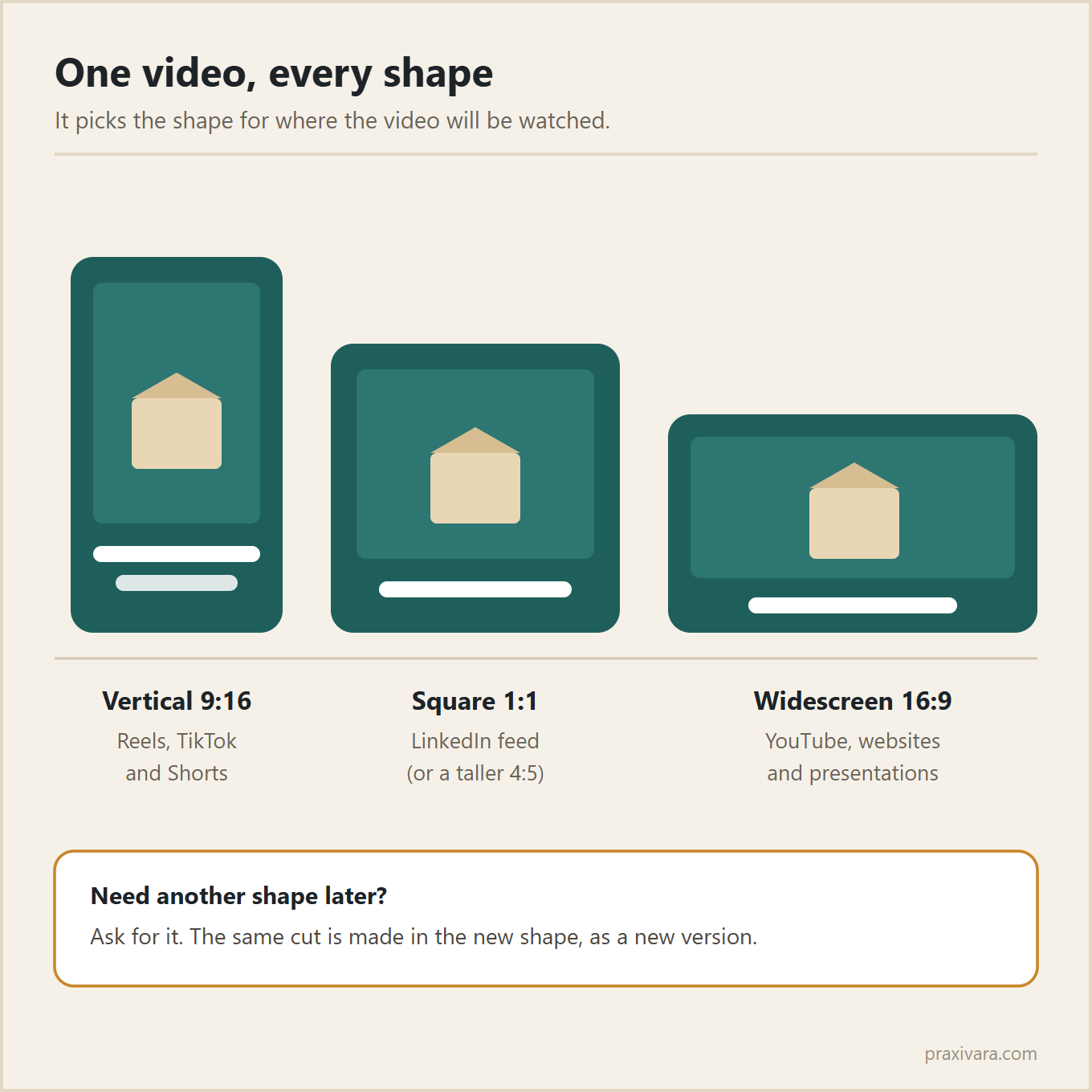
Need another shape later? Ask, and it makes the same cut in the new shape. Videos come out in Full HD as standard MP4 files.
It works everywhere Praxivara does
- In the chat. In the assistant on the website, and in the Praxivara side panel in Chrome.
- From your phone. Message your assistant on WhatsApp, iMessage, Telegram or by text, and the finished video comes back to you in the same conversation. Our guide to running your business from your phone shows how the channels fit together.
- Inside your agents. An AI agent can make a video as part of a job it runs for you, like turning each new product into a short social clip.
- On your website. The web app builder makes hero and background videos, product demos and feature clips for the sites you build.
- In your Drive. Every video you ask for is saved there. Download it, share a link, or send it to email, Slack, Microsoft Teams or your messaging apps.
Get started in one message
Tell your assistant what the video is for, who will watch it, where it will be posted and how long it should be. Attach your logo and a few photos, and you are done. Here are three requests you can copy and change.
Try one of these
- "Make a 20-second vertical Reel for our winter pipe check. Open on frost spreading across a window, calm friendly voice, light music, end with Book your check online. Use our logo and these photos of our van."
- "Make a 45-second square video for LinkedIn launching our new insulated mailer. Confident voice, steady music, end with Request a free sample. Use these five product photos."
- "Make a calm 8-second background video for our homepage: soft morning light moving slowly across a tidy desk, no voice, no music."
Frequently asked questions
Do I need video editing skills or software?
No. You describe what you want and ask for changes in plain words, like "shorter intro" or "make it vertical". If you like being hands-on, the studio shows every shot and version, and the Audio Studio gives you a full editor for sound.
Can I use footage I shot on my phone?
Yes. Send it from the chat, a messaging app or your Drive. You can trim it, reshape it for phones, add captions and your logo, change the look, or pull out its best moment.
Can my AI agents make videos too?
Yes. An agent can make a video as part of a job it runs for you, and the web app builder makes videos for the sites and apps you build.
How much does it cost?
Video, music and voice run on your plan's credits, like everything else in Praxivara. Plans start at $24.99 a month. See pricing for the plans and the credits each one includes.
Make the video you keep putting off
Pick one video from your list, describe it to your assistant and watch the first cut come together. Every plan starts free for 7 days, and no credit card is needed.
Start your free trial