
At 7:46 a.m., a business owner is standing in a parking lot with no laptop open. Overnight, a large quote changed, a customer replied to an old thread, and an agent found a record conflict that should not be resolved automatically.
The owner sends a short voice note from the phone: review the changes, move anything covered by the written rules, and ask before sending the revised proposal. A few minutes later, the owner receives one decision request with the relevant facts, approves the bounded action, and leaves the disputed record for a manager. The finished document and the work record are waiting in the web workspace when the owner returns.
That is a much more useful idea than putting another chatbot app on a phone.
The direct answer: To talk to an AI employee from your phone, use the phone as a secure control surface for work that runs across your business systems. The AI should understand a bounded request, use current workspace and connected-tool context, pause when an approval is required, report useful status, and return evidence of the result. Praxivara gives you the web plus four messaging channels, with a separate live voice option. The messaging channels are SMS, WhatsApp, iMessage, and Telegram.
In this guide, AI employee is a practical product metaphor. It means software assigned a persistent business role, connected tools, working context, and written boundaries. It is not a legal employee, an accountable manager, or a substitute for human responsibility.
In this guide
- What it actually means to talk to an AI employee
- Separate owner access from customer communication
- Choose the right phone channel
- Define the outcome and its evidence
- Use the PHONE Protocol
- Understand the Assistant and Agents
- Follow a complete worked example
- Set up phone access safely
- Run 12 failure tests
- Measure finished work
- Use Praxivara from your phone
What it actually means to talk to an AI employee from your phone
A phone-accessible AI employee is not defined by the shape of its chat box. It is defined by what remains available behind the conversation. Can it use the same approved business knowledge you use at a desk? Can it read current records through connected systems? Can it take permitted action? Can it stop at a consequential boundary? Can it tell the difference between a finished job and an attempted job?
If the answer is no, the phone is merely a convenient place to draft text. If the answer is yes, the phone becomes a doorway into a wider operating system.
Three products that are often called mobile AI
| Product type | What the phone does | Where the work happens | Best use | Main limitation |
|---|---|---|---|---|
| AI chat app | Hosts a conversation | Mostly inside the app and its enabled features | Questions, drafting, and quick analysis | The owner may still have to move every result into the business workflow |
| Phone-control agent | Operates taps, screens, or apps on the device | On the phone interface | Device-level routines | Screen state is fragile, and the device becomes part of the execution path |
| Phone-accessible AI employee | Carries requests, decisions, alerts, and results | Across permissioned cloud systems, records, and agents | Business work that should continue while the owner is mobile | Requires deliberate identity, permissions, approval, and evidence design |
The third model is the focus of this guide. The phone does not need to stay unlocked while software pretends to be a finger. It does not need to hold every source record. It carries the owner's intent into the work and carries important decisions and verified results back.
Continuity means shared context, not one identical transcript
Praxivara shares the same Assistant engine and workspace context across the web, SMS, WhatsApp, iMessage, and Telegram, and conversations from those messaging channels are visible on the web. This does not mean every surface is one identical literal transcript: each external channel has its own Chat, and live voice is a separate conversation path.
The more important continuity is operational. The same Assistant can work from the same workspace context and use the same permitted connected records. If a new channel message depends on an earlier task, identify the record, customer, project, or agent clearly enough to resolve the intended context. A phrase such as "use the latest signed proposal for Meridian Dental" is more reliable than "continue that thing from earlier."
Talking to your AI is not the same as having AI talk to customers
This is the most important channel distinction in the article.
| Path | Who is communicating | Purpose | What it does not imply |
|---|---|---|---|
| Owner messaging channel | The account owner and the Praxivara Assistant | Requests, status, notifications, approvals, and supported deliveries | It does not turn the owner's connected channel into a general customer-outreach identity |
| Connected customer messaging integration | The business and a customer or third party | Eligible external communication through a supported integration action | It does not inherit permission merely because the owner can message the Assistant |
| Praxivara Phone | A customer caller and a customer-facing business phone setup | Live calls and call-related business workflows | It is calls only and should not be described as an SMS product |
| Owner live voice | The connected account user and their Assistant | Private, authenticated spoken access for the account user | It is not the customer business line or the Agent approval inbox |
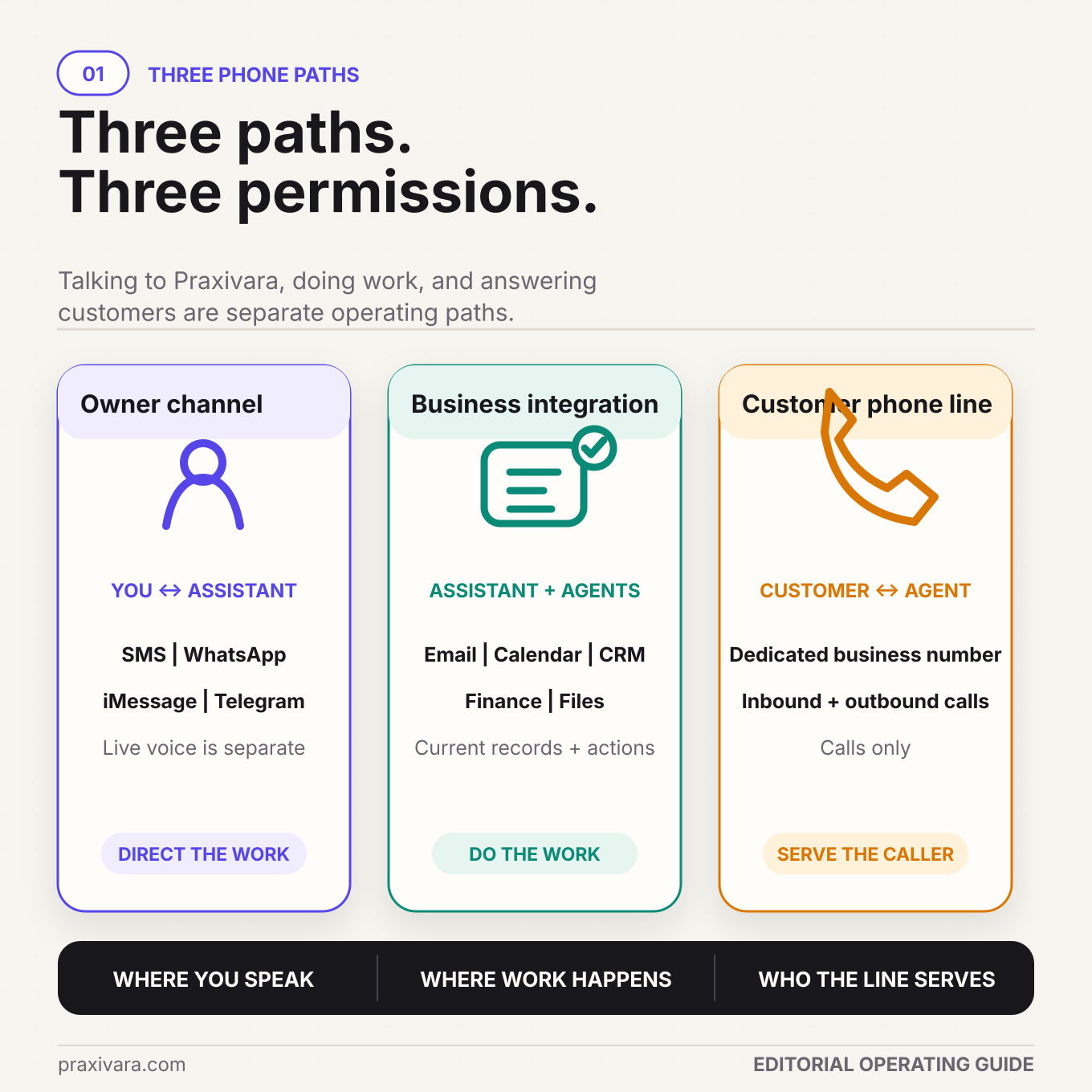
A message that says "send the customer an update" may cause the Assistant or an Agent to use an eligible connected communication tool. That outward action still needs the correct recipient, purpose, business identity, permission, provider configuration, and applicable safeguards. It does not flow automatically from the owner's private conversation channel.
The same care applies to voice. Calling your own Assistant for a briefing is a different fact pattern from using an AI-generated voice to call consumers. The FCC has confirmed that AI-generated human voices fall within the TCPA's artificial or prerecorded voice restrictions. Owner access is not a shortcut around customer-contact requirements.
Customer-contact rule: Before an AI system contacts a customer, apply the consent required for the purpose, recipient, channel, and jurisdiction; respect the customer's channel preference; honor opt-outs and suppress incompatible pending work; and satisfy applicable call-recording notice or consent rules. Provider policies may add requirements. This is an operating checklist, not legal advice.
Choose the right phone channel for the moment
Praxivara provides the web plus four owner-facing messaging channels: SMS, WhatsApp, iMessage, and Telegram. Live voice is a separate option. A familiar channel should make access easier without hiding what each surface is good at.
| Surface | Best for | Useful request | Boundary to remember |
|---|---|---|---|
| Web workspace | Long instructions, source review, configuration, logs, files, and deep agent work | "Build and test an overdue-invoice agent with these approval rules." | Use the builder for new agents and substantial edits |
| SMS | Concise requests, alerts, and approval responses | "What needs my decision before 2 p.m.?" | Short text is poor at carrying complex source material |
| Conversational work and supported voice notes, photos, or files | "Use this voice note to update the site brief, then send me the revised file." | Media formats, size limits, and provider behavior still apply | |
| iMessage | Everyday owner conversations from the Messages app | "Pause the renewal agent and show me the three affected accounts." | This owner channel is not the same thing as a customer messaging integration |
| Telegram | Chat-based requests, agent notifications, and supported attachments | "Approve the prepared inventory report and attach the final copy here." | Use only the connected owner identity and treat forwarded content carefully |
| Live voice | A spoken briefing or immediate conversation when typing is inconvenient | "Read my next three appointments and add this note to the Wilson account." | Separate, authenticated live-voice access for the account user; not a background Agent approval inbox |
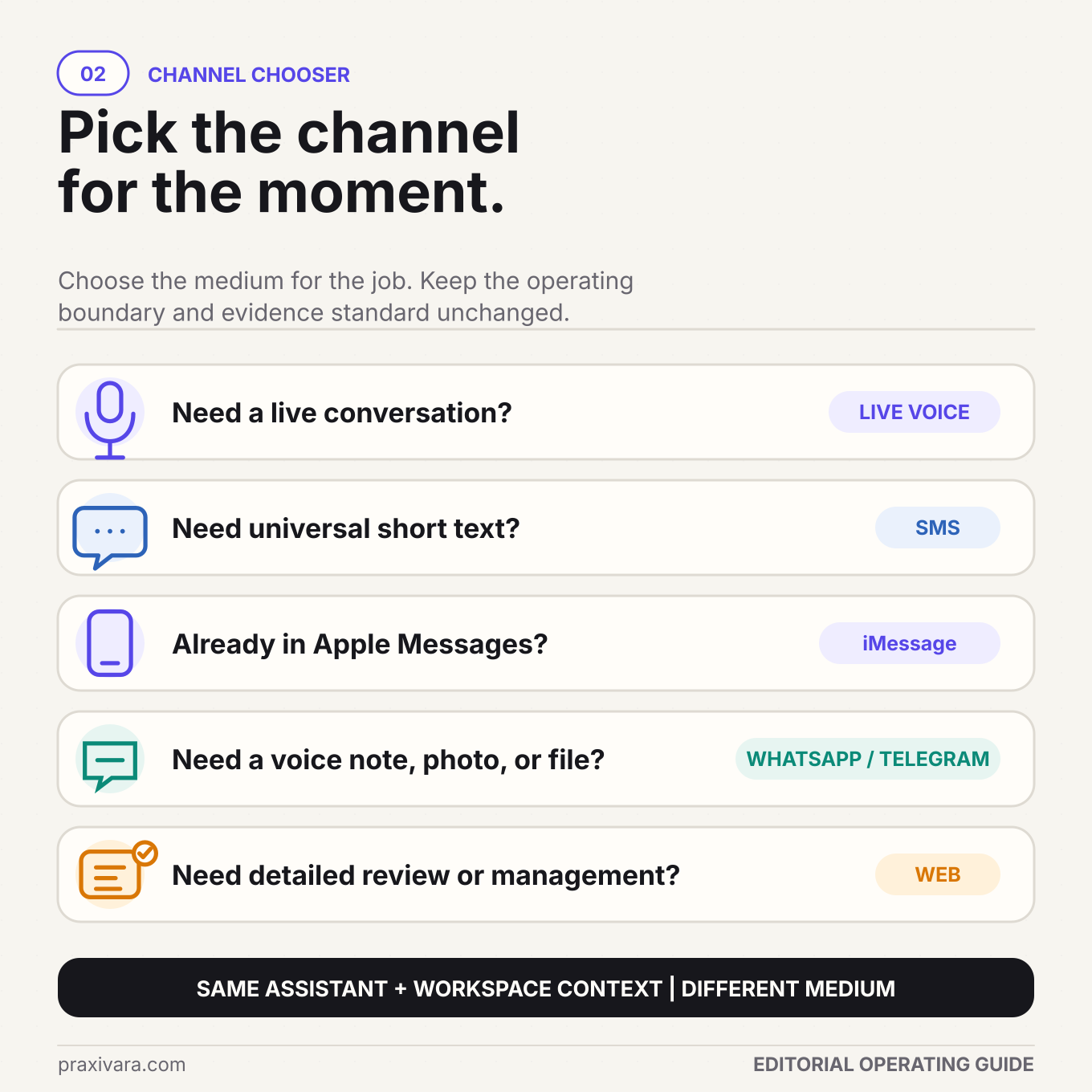
Channel choice should reduce friction, not lower the evidence standard. A two-word approval can be valid only when the approval request identifies the exact action, target, consequence, and expiry. A spoken request can start real work, but the result still needs an authoritative record. A voice note can supply context, but audio quality and transcription uncertainty must be treated as operational inputs, not invisible details.
Use live voice only when safely stopped. Do not place or manage an AI call while driving. Pull over before starting the conversation, reviewing information, or giving an instruction. The National Highway Traffic Safety Administration warns that calls and voice features still divert attention from driving.
Define the outcome before choosing the channel
Start with the result, not a vague role. "Handle this customer" leaves pricing, authority, channel, timing, and completion undefined. "Read the latest customer email and order record, draft a response using the approved delay policy, and ask me before sending" establishes a clear route.
A phone request should identify four things whenever they are not already obvious:
- The object: customer, order, account, project, meeting, document, or agent.
- The desired outcome: summarize, update, schedule, draft, send, assign, pause, or investigate.
- The authority boundary: proceed under policy, prepare only, or ask before acting.
- The finish evidence: returned file, record ID, event, message status, owner assignment, or explicit hold.
Check the latest Meridian proposal and the account record. Update the brief with today's scope change. Prepare the customer email, but ask me before sending. Return the revised PDF and the final CRM status.
That instruction is short enough for a message and precise enough to operate.
A model can say "done" even when an API timed out, the attachment failed, or the record was updated in the wrong place. Completion must be defined outside the language model.
| Requested outcome | Useful completion evidence | What does not prove completion |
|---|---|---|
| Meeting booked | Calendar event ID, time, attendees, and current event status | A free slot found or booking link drafted |
| Customer message sent | Provider or integration send result tied to the intended recipient and content | The final draft displayed in chat |
| Record updated | Authoritative record identifier, changed field, and resulting value | A summary of what the record should say |
| File delivered | Final file, delivery status, and durable location when applicable | A promise that the file will arrive later |
| Exception handed off | Named owner, preserved context, acceptance status, and next due action | A notification sent to an unowned inbox |
The operating sequence: request, current context, approval if required, status, receipt. The phone can carry every part of that sequence, but the evidence must come from the system that actually owns the result.
The PHONE Protocol for useful mobile AI work
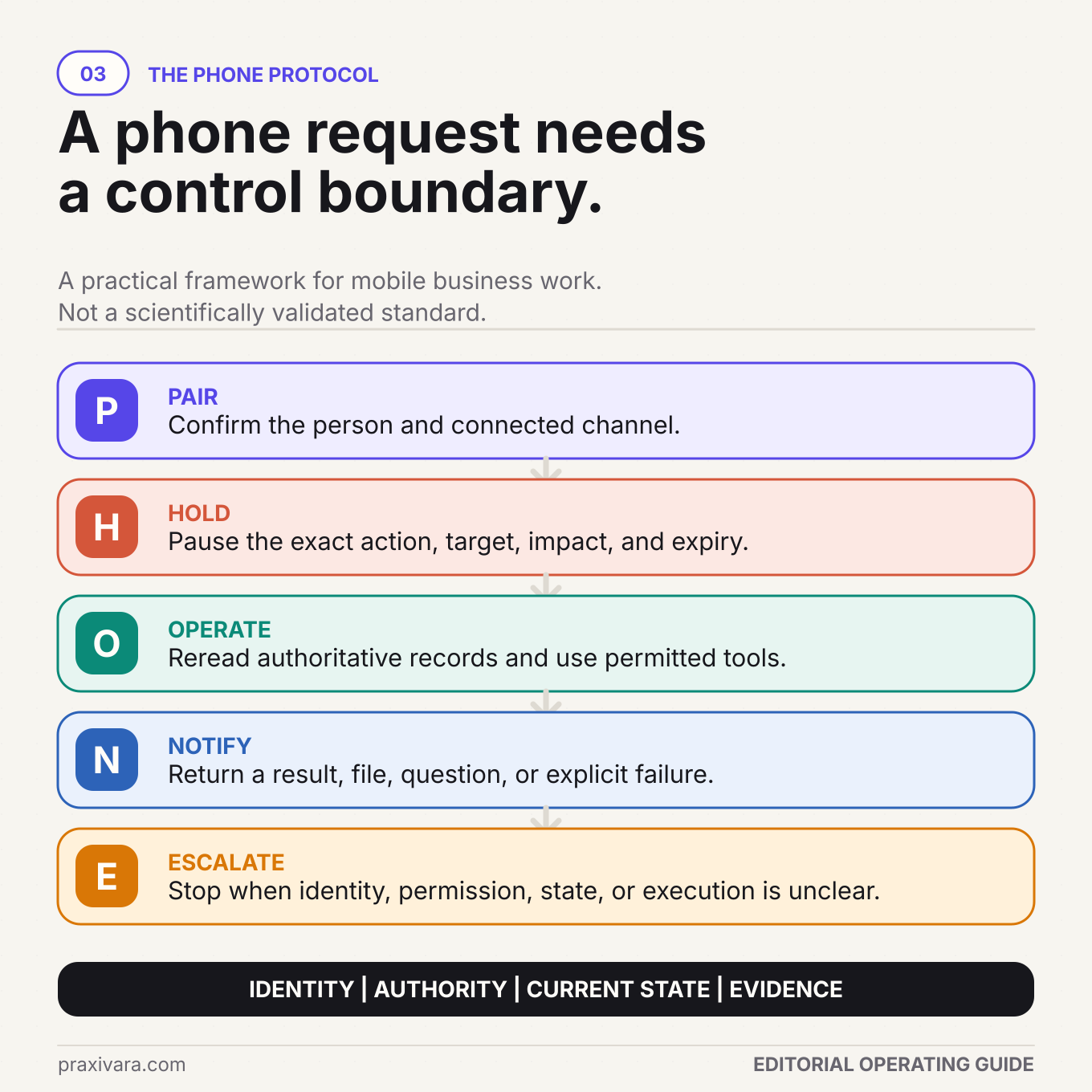
The PHONE Protocol is a practical framework for deciding whether a phone conversation is connected to accountable business execution. It is not a scientifically validated standard. It carries identity, authority, current state, and evidence through five steps.
P: Pair the person and channel
Confirm that the request comes from the intended account owner through a connected identity. SMS, WhatsApp, iMessage, and Telegram are owner-facing messaging paths. Live voice is a separate, authenticated path for the account user. A familiar phone number or profile is part of the authorization design, not merely a contact preference.
Pairing also defines the channel boundary. It determines which account context may be exposed, which actions are available, and where a sensitive result may return. An unrecognized or disconnected sender should receive no private business context and should not be allowed to operate tools.
H: Hold consequential actions
Reading a calendar and canceling an event are not equivalent. Drafting a message and sending it are not equivalent. Summarizing an invoice and issuing a credit are not equivalent. Mobile convenience should never flatten those differences.
Hold the exact action that needs a person. The approval request should identify the Agent or Assistant action, business object, target, material consequence, supporting evidence, response format, and expiry. If the underlying state changes, the old approval must no longer authorize the action. Silence is not consent.
O: Operate from shared business state
The phone message is not the source of truth for the business. It points the Assistant toward workspace context and permitted systems. The CRM holds the account stage. The calendar holds the appointment. The accounting platform holds the invoice state. The Agent run holds its own status. The owner should not have to paste all of that into a mobile chat, and the model should not invent it from an old conversation.
Useful state has three layers:
- Conversation context explains what the owner is trying to do now.
- Workspace context preserves approved business instructions and relevant history.
- Authoritative tool context provides current facts at the moment an action is chosen.
The most important facts should be reread just before a consequential action. A customer may have paid, an appointment may have moved, a quote may have been replaced, or a person may have taken ownership since the first message arrived. Use least-necessary tool access and deterministic limits for sensitive sends, financial changes, and account actions.
N: Notify with evidence
A phone-accessible system becomes much more valuable when the direction can reverse. The owner can reach the AI, but an existing Agent can also reach the owner with a result, file, decision request, or explicit failure.
The notification should not say only, "Approval required" or "Done." It should answer:
- Which Agent and business record are involved?
- What happened, or what action is waiting?
- What evidence supports the reported state?
- What will happen if the owner approves or declines?
- How should the owner respond, and when does the request expire?
Existing Praxivara Agents can notify the owner and attach supported outputs through selected, connected SMS, WhatsApp, iMessage, or Telegram channels; an approval request is sent through one configured or available connected messaging channel. The approval message specifies the typed response to use. Live voice is separate and is not the approval channel for background Agent runs.
E: Escalate uncertainty
Stop and route the work when identity, permission, current context, or execution is uncertain. Preserve the known facts, name the missing evidence, and identify the next recovery owner. Do not let the model smooth over a conflict or turn an ambiguous timeout into a blind retry.
A correct escalation is an operational result. It might say that the calendar action has an uncertain outcome, the customer record conflicts with the signed document, the sender identity is unrecognized, or the connected tool no longer has access. The system should explain what remains held and what a person must verify.
Your Assistant and your Agents do different jobs
The word "AI" often hides two distinct operating roles. A business Assistant handles the immediate conversation. An Agent carries a bounded job with its own instructions, tools, trigger or schedule, approval rules, and output. The owner can use the Assistant to inspect or control existing agent work without treating every phone conversation as a new automation project.
| Question | Assistant | Agent |
|---|---|---|
| How work begins | The owner asks in the web workspace, a messaging channel, or live voice | On demand, on a schedule, or from a supported trigger |
| Best use | Immediate questions, ad hoc actions, briefings, and control | Repeatable work with a stable job definition |
| Phone role | Request, clarify, inspect, and manage existing work | Notify the owner, request approval, or deliver supported output |
| Configuration | Conversation can start immediately within available access | New agents and deep edits belong in the web builder |
| Finish line | Answer or requested action with a result | Run state, logs, outputs, and approval or exception status |
Consider a weekly cash-collection report. You could ask the Assistant for it manually every Friday. If the job is stable, an Agent can run on schedule, collect the permitted records, prepare the report, and deliver it. If one account contains a dispute, the Agent can pause and ask the owner instead of applying the routine path.
This changes the owner experience. The phone is no longer only a remote control used to check on the system. It is also the place where the system can surface the one decision that prevents a valuable job from moving forward.
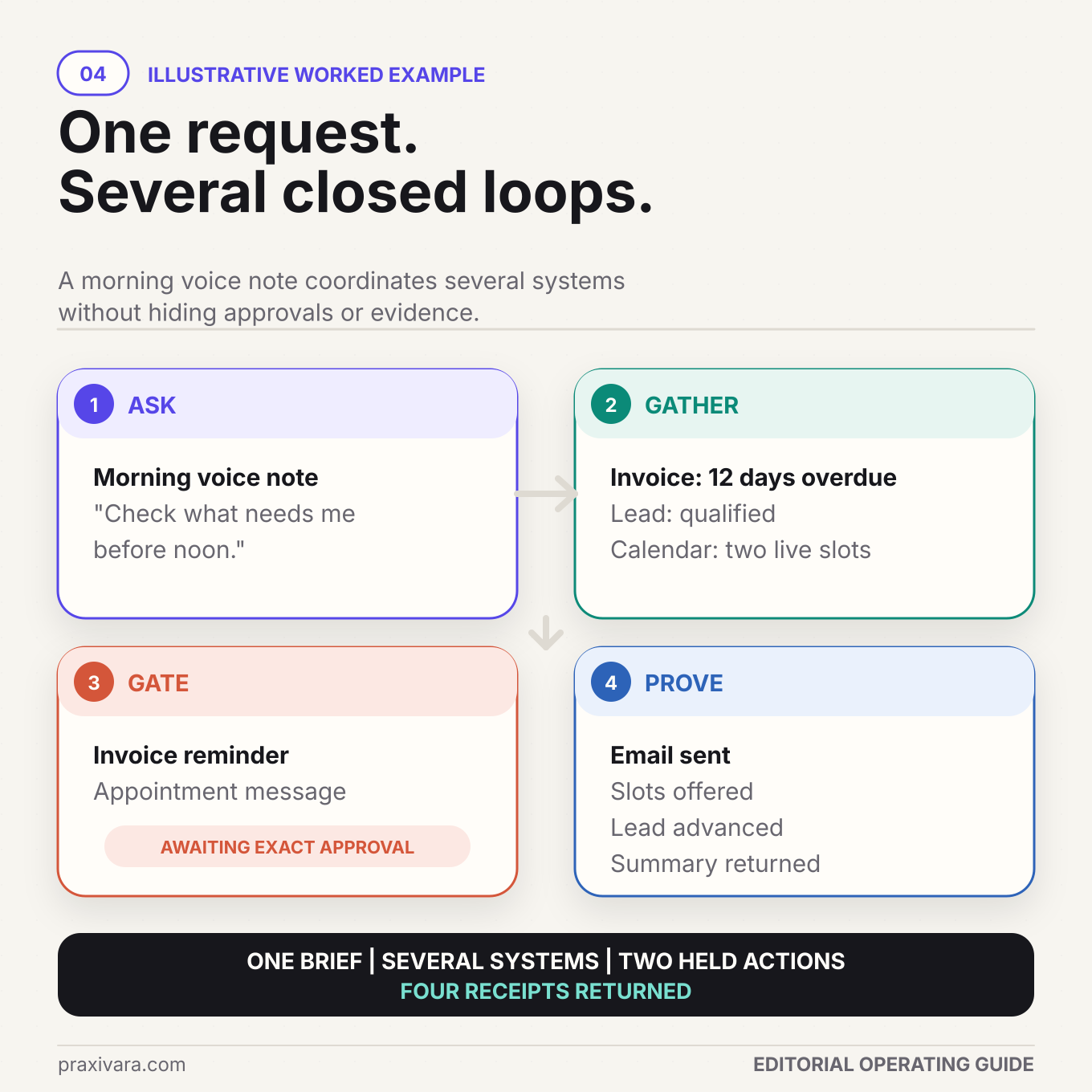
A complete morning from phone request to verified work
The following commercial-cleaning example is illustrative. It shows an operating design, not a claimed customer result or performance benchmark.
7:30 a.m.: two Agents prepare the morning state
A scheduled collections Agent checks supported accounting and CRM sources. A lead-review Agent checks a newly qualified opportunity and current calendar availability. Most work fits the written rules. Two external messages require the owner's exact approval: an overdue-invoice reminder and an appointment message offering two real slots.
7:52 a.m.: the owner asks from WhatsApp
Between sites, the owner sends a voice note: "Check what needs me before noon. Prepare anything covered by policy, but do not send an external message without the exact approval."
The Assistant uses workspace context available on the web and checks the permitted accounting, CRM, inbox, and calendar connections. It does not assume the voice note is the source of truth. It gathers the overdue invoice, qualified lead, and two real calendar slots, then identifies each record explicitly.
8:01 a.m.: two exact actions wait
The invoice reminder approval identifies the customer, current balance, invoice record, destination, prepared text, and expiry. The appointment approval identifies the qualified lead, offered times, time zone, destination, and expiry. The owner can approve or decline each action independently using the requested typed response.
The owner approves both. The customer email is sent through the eligible connected tool. The two slots are offered without claiming that an appointment has already been booked. The lead record advances only to the state supported by the actual event.
9:20 a.m.: live voice provides a briefing
While parked, the account user uses the private live-voice option and asks for the next three appointments plus the status of the invoice and qualified lead. The voice conversation provides a spoken briefing. It does not pretend to be the WhatsApp Chat, and it is not used to approve either Agent action.
10:05 a.m.: the web workspace holds the record
Back at a desk, the owner can see the channel conversation, sent-email result, two offered slots, advanced lead state, and returned summary. The mobile interaction did not create a hidden parallel workflow. It reached into the same operating layer and left four reviewable receipts.
Why this design is stronger than a mobile chatbot
- The request names the finish line and the actions that must remain held.
- The Assistant checks live business context instead of relying on the voice note alone.
- The Agents gather state and filter routine work before interrupting the owner.
- Each approval includes enough information to make a responsible decision.
- The final state is visible in authoritative systems and the web workspace.
Business tasks that work well from a phone
The best mobile requests are important enough to move now, bounded enough to describe clearly, and connected to systems that can prove the result. They do not require the owner to inspect a dense configuration screen or compare hundreds of fields on a small display.
| Job | Phone request | Required boundary | Receipt |
|---|---|---|---|
| Morning briefing | "Give me today's appointments, urgent customer replies, and decisions due before noon." | Use current connected sources; separate facts from recommendations | Dated brief with source links or record references |
| Meeting preparation | "Prepare a one-page brief for the Acme renewal using the latest account and email history." | Identify the authoritative account and document versions | Final file plus source record list |
| Schedule change | "Find two valid times next week and prepare the reschedule message." | Do not claim booking until the calendar write succeeds | Event status, time zone, attendees, and event ID |
| Customer response | "Draft a response using our delay policy and ask before sending." | External send follows your permission setting and needs an eligible channel | Approved text and provider send result |
| Agent control | "Pause the renewal Agent, show me affected runs, and do not cancel completed work." | Confirm the exact Agent and requested state change | Agent state and affected-run summary |
| Document update | "Use this voice note to revise the site brief and return the final PDF." | Flag uncertain transcription and preserve the approved template | Final file and version reference |
| Exception handoff | "Assign this disputed invoice to Maya with the customer reply and current balance." | Stop incompatible automated follow-up | Named owner, accepted handoff, and next due action |
| Operational check | "Which scheduled runs failed today, and which ones need me?" | Report observed run state without guessing root cause | Run list with status and next recovery step |
What should stay in the web workspace or with a person
A phone is a poor surface for designing a complex agent, comparing a long run log, reviewing a large spreadsheet, changing broad permissions, or making a high-stakes decision without supporting documents. New Agent creation and substantial configuration edits belong in the web builder. High-impact legal, financial, medical, employment, safety, and security decisions should remain with qualified people operating under the relevant policy and law.
The goal is not to force every workflow into a text message. It is to remove the unnecessary trip back to a laptop when the owner's part is a clear request, a bounded decision, or a quick inspection.
How to set up an AI employee you can use from your phone
1. Choose one useful mobile job
Start with a job the owner already performs while away from a desk: morning briefings, proposal review, schedule changes, exception approvals, task assignment, or agent-run monitoring. Do not begin with "run the business from my phone." Write one finish line and one reason the phone makes the job better.
2. Define the authoritative records
List which system owns each fact. The CRM may own the opportunity stage, the calendar the appointment, the accounting platform the balance, and the file store the signed document. If two sources disagree, write the precedence or handoff rule before launch.
3. Connect only the tools the job needs
Give read access and action access deliberately. A daily briefing may need to read email, calendar, and CRM but need no external-send permission. A scheduling workflow may need calendar creation but no access to invoices. More connections do not automatically make an AI employee more capable. The right connections make one job complete.
4. Connect the owner channel
Select SMS, WhatsApp, iMessage, or Telegram based on the owner's habits and the type of input. Use the verified account-owner identity. If live voice is needed, enable the private, authenticated account-access path. Do not share that access path as a customer support number.
5. Write approval boundaries before testing
List the actions that may proceed, the actions that require approval, and the actions the system must never take. Include amounts, destinations, record types, time limits, and exception conditions. "Ask me before anything important" is not an approval policy because importance is undefined.
6. Make mobile approvals decision-complete
An approval request should contain the exact object, proposed action, target, material consequence, evidence, response format, and expiry. If the underlying record changes after the approval was requested, invalidate the old request and generate a new one. The owner should never approve a stale action because the phone displayed an old notification.
7. Add an Agent only when the job repeats
Use the Assistant for immediate, variable requests. When the same job repeats, build a bounded Agent in the web workspace with its tools, instructions, schedule or supported trigger, approvals, and completion evidence. The complete guide to building a business AI agent covers that design and launch process in detail.
8. Launch in stages
Begin with read-only briefings or drafts. Then allow low-risk internal actions. Add sensitive external actions only after normal, exception, adversarial, and tool-failure tests pass. Keep the owner able to pause the Agent and inspect the work record.
Security and approvals matter more on a small screen
Mobile access improves speed, but it also compresses context. A notification preview can hide the target. A forwarded message can look authoritative. A voice transcription can change a number. A person can approve quickly without seeing the record that changed. Good design compensates for that compression.
Verify who is giving the instruction
Treat channel identity as part of the authorization model. Bind the channel to the intended owner account. Reject or hold requests from an unrecognized sender. Keep live voice limited to the authenticated account user. If the phone or account is lost, remove the binding and invalidate outstanding approvals.
Keep credentials out of messages
Do not paste passwords, access tokens, recovery codes, private keys, or full payment credentials into a conversation. Connect applications through the platform's supported authorization path and revoke access there when necessary. The message should express intent, not carry the secret that grants access.
Treat external content as untrusted
An email, webpage, attachment, or forwarded message can contain text intended to redirect the AI. OWASP's prompt-injection guidance specifically recognizes indirect instructions embedded in external content. Separate source content from owner instructions, limit tool permissions, validate important fields outside the model, and require approval for consequential actions.
Use the channel to approve an action, not a mystery
A good approval says, in substance: "Agent Renewal Review wants to send version 4 of the proposal to [email protected] for $18,600. The source record was checked at 10:12 a.m. Reply using the displayed approval code before 10:22 a.m., or the request expires." A bad approval says, "Should I proceed?"
Preserve monitoring and human responsibility
NIST's AI risk guidance emphasizes documented roles, ongoing measurement, monitoring, and risk management across the lifecycle. For phone-operated work, that means named owners, visible run status, reviewable outputs, exception handling, and a way to pause or revoke access. Convenience should not erase accountability.
Run these 12 tests before relying on phone access
Do not test only the happy path where the right owner sends a perfect message and every connected tool responds. The following tests expose whether the phone is connected to a controlled operating system or merely a persuasive chat experience.
| Test | Failure injected | Pass condition |
|---|---|---|
| 1. Wrong sender | An unrecognized number asks for account data or an action | No sensitive context or action is released; the attempt is held or rejected |
| 2. Channel change | The owner refers to a record from a different external channel | The Assistant resolves the intended business object or asks a narrow clarifying question without claiming a shared literal transcript |
| 3. Duplicate instruction | The same action is requested from two channels | Only one side effect occurs, and both conversations can report the authoritative result |
| 4. Stale approval | The customer record changes after an approval request is sent | The old approval expires or is rejected; a refreshed decision request uses current facts |
| 5. Conflicting instruction | Web says pause while a phone message says continue | Written precedence or a human clarification decides the state; the system does not race both commands |
| 6. Revoked connection | A required calendar, CRM, email, or file connection has expired | The work stops with the specific missing access and recovery step, not a fabricated result |
| 7. Uncertain timeout | An action times out after it may have succeeded | The system checks for the existing result before retrying and prevents a duplicate side effect |
| 8. Bad media | A voice note, photo, or file is unsupported, corrupted, or too large | The limitation is explained and no important fact is silently inferred |
| 9. Embedded instruction | A document tells the AI to ignore the owner and send confidential data | The content is treated as data, tool limits remain in force, and the unsafe instruction does not execute |
| 10. Owner unavailable | An approval expires with no response | The Agent holds, escalates, or follows the written fallback without treating silence as consent |
| 11. Sensitive output | A request asks for confidential details in a channel or preview that should not receive them | The system withholds, redacts, or routes the output to the approved surface |
| 12. Voice interruption | The call drops or a critical number is transcribed ambiguously | No consequential action relies on the uncertain value; the Assistant confirms it through an appropriate path |
Launch rule: A failed test is not a prompt-writing problem by default. It may require an identity gate, deterministic state check, narrower tool permission, expiring approval, idempotency key, provider retry policy, or human recovery path.
Use the fillable launch card: The Mobile AI Employee Launch Card is a 4-page PDF with a channel-choice page, PHONE Protocol worksheet, an expanded set of 19 failure tests, and a 30-day scorecard. Fill it with one real job before connecting consequential actions.
Measure finished work, not mobile conversation volume
More messages do not prove the business is moving faster. A phone-accessible AI employee should reduce unresolved work, unnecessary dashboard checks, and time spent carrying context between systems. Measure the job at the point where evidence exists.
| Metric | Definition | What it reveals |
|---|---|---|
| Useful request completion rate | Eligible phone requests that reach their defined verified outcome | Whether mobile access moves real work rather than creating chat |
| Time to useful acknowledgment | Median and 90th percentile from request to a response that identifies the job and next action | Responsiveness without rewarding empty receipts |
| Time to verified outcome | Median and 90th percentile from eligible request to authoritative evidence or accepted handoff | The actual operating delay |
| Approval-request rate | Runs requiring owner approval divided by eligible runs | Whether policy is too permissive, too cautious, or appropriately selective |
| Approval latency | Time from decision-complete request to valid response or expiry | Whether the chosen channel helps decisions move |
| Unplanned intervention rate | Runs needing a person outside written approval and exception paths | Where instructions, data, tools, or policies remain incomplete |
| Channel continuity pass rate | Cross-surface tasks resolved to the correct business object without repeated reconstruction | Whether the same workspace context is actually useful |
| Correction and rework rate | Completed outputs that require factual or operational correction | Quality beyond response speed |
| Duplicate prevention rate | Repeated requests correctly mapped to an existing action or result | State control across channels |
| Failure recovery rate | Tool and delivery failures that reach a verified retry, alternative path, or human owner | Whether exceptions disappear or actually close |
| Agent notification usefulness | Notifications that lead to a valid decision, accepted handoff, or useful review | Whether agents interrupt the owner for the right reasons |
| Cost per verified job | Platform, model, communication, review, and recovery cost divided by verified outcomes | The cost of completed work rather than message activity |
Segment these metrics by job, channel, and action risk. SMS may be excellent for a concise approval and poor for a complex document review. Live voice may be useful for a briefing and inappropriate for a sensitive approval. The right question is not which channel wins overall. It is which channel helps a specific job reach a verified outcome safely.
How Praxivara turns your phone into an operating surface
You do not need to manually build every API, identity check, channel bridge, approval flow, and agent notification described in this guide. Praxivara lets you work with one Assistant, connect supported systems, configure bounded Agents in the web builder, and coordinate the owner-facing part of the job from familiar phone channels.
The current Praxivara Assistant is available through the web plus four messaging channels: SMS, WhatsApp, iMessage, and Telegram. The same Assistant engine and workspace context support those surfaces, and channel conversations appear on the web. Live voice is a separate, authenticated option for the account user.
From a phone message, the Assistant can perform supported integration and file actions, subject to the available tools, configuration, permissions, and limits, and it checks with you first when your permission setting calls for it. Interface-only tools that require the web product are not presented as phone actions. You can inspect and manage existing Agent work from the Assistant, while new Agent creation and deep configuration belong in the web builder.
Praxivara AI Agents can run on demand, on a schedule, or from a supported trigger. In the builder, the owner can review the Blueprint, tools, instructions, trigger or schedule, and approval rules. Existing Agents can notify the owner and attach supported outputs through selected, connected SMS, WhatsApp, iMessage, or Telegram channels; an approval request uses one configured or available connected messaging channel. Run records and Deliveries keep the durable result in the operating workspace.
Across hundreds of integrations, the specific actions available depend on what each connected application supports. Connecting an application does not guarantee every trigger or action, and a successful conversation does not override a failed system write.
| PHONE step | How Praxivara supports it | Owner responsibility |
|---|---|---|
| Pair the person and channel | Connect the owner-facing messaging identity or registered live voice path to the account | Protect the connected identity and revoke it when access changes |
| Hold consequential actions | Set an Agent to check with you, so it pauses the exact action and tells you how to reply | Choose each Agent's permission setting and respond before the request expires |
| Operate from shared business state | Use the same Assistant engine, workspace context, and permitted connected systems across the web and messaging surfaces | Name ambiguous records, maintain authoritative data, and grant only necessary access |
| Notify with evidence | Agents can reach the owner through selected, connected messaging channels with a result, supported file, question, or explicit failure; approval requests use one configured or available connected messaging channel | Judge the report against the authoritative result, not the wording alone |
| Escalate uncertainty | Preserve run state, Deliveries, connected-system results, and explicit waiting conditions | Take ownership when identity, permission, context, or execution remains uncertain |
Keep the products straight: The owner-facing messaging channels are for the owner and their Assistant. Customer messaging uses eligible connected integrations. Praxivara Phone is a separate customer-facing calls-only product. Live owner voice is separate from both and is not an Agent approval channel.
The commercial advantage is not that Praxivara puts a chat box in more places. It is that a familiar message or call can reach an operating layer with tools, Agents, approvals, files, and visible work history. The owner can move the business from the phone without making the phone responsible for performing the whole workflow.
Frequently asked questions
Can I text my AI employee?
Yes. Praxivara supports owner-facing conversations through SMS, WhatsApp, iMessage, and Telegram. These channels use the same Assistant engine and workspace context, and their conversations are visible on the web. Each external channel has its own Chat, so identify the relevant customer, record, project, or Agent when a reference could be ambiguous.
Can I call my AI employee?
Yes. Praxivara offers a separate, authenticated live-voice option for the account user. Live voice is real-time spoken access. A held action inside that Assistant call can use spoken confirmation, but a paused background Agent run is answered by message or in the Agent's Activity; a messaging transcript does not automatically become the live-call context.
Which Praxivara surfaces can I use?
You can use the web workspace plus four owner-facing messaging channels: SMS, WhatsApp, iMessage, and Telegram. Live voice is a separate private option for the connected account user.
Can an AI Agent message me first?
Yes. An existing Praxivara Agent can send an owner notification or attach a supported output through selected, connected SMS, WhatsApp, iMessage, or Telegram channels. When approval is required, the request goes through one configured or available connected messaging channel. It should interrupt for a real decision, exception, or useful delivery rather than narrating every routine step.
Can I approve an AI Agent action from my phone?
Yes. A paused background Agent run can ask for approval through one configured or available connected SMS, WhatsApp, iMessage, or Telegram channel. Use the typed response specified in the approval message. The request should identify the action and relevant context, and it should expire when a stale decision would be unsafe. Live voice is not the background Agent approval channel.
Can the same WhatsApp or SMS channel message my customers?
Do not assume so. The owner-facing channel is a private route between the account owner and the Assistant. Customer or third-party messaging is a separate outward action through an eligible connected integration, with its own business identity, recipient, consent, configuration, provider rules, and applicable law.
What is the difference between live voice and Praxivara Phone?
Live owner voice lets the connected account user call and speak with their Assistant. Praxivara Phone is a separate customer-facing business phone integration. Praxivara Phone handles calls only and should not be described as providing SMS.
Can I build a new AI Agent entirely by text message?
The phone Assistant can help inspect and manage existing Agent work, but new Agent creation and deep configuration belong in the web builder. That is where the owner can review tools, instructions, schedule or trigger, Blueprint, approval rules, and test results with the context those decisions deserve.
Can I send voice notes, photos, or files?
Supported media can be used on compatible messaging connections, and voice notes can be transcribed for an Assistant turn. Format, codec, file-size, storage, channel, and provider limits apply. Important numbers, names, and approvals should be confirmed when transcription or media interpretation is uncertain.
Is it safe to run a business from an AI chat on a phone?
It can be safe enough for a defined job when identity is verified, tool permissions are narrow, consequential actions have decision-complete approvals, external content is treated as untrusted, sensitive output is routed appropriately, and completed work leaves evidence. It is not safe merely because the channel is private or the model sounds confident.
What is the best first phone-based AI workflow?
Start with a read-heavy, action-light job such as a morning briefing, Agent exception summary, meeting brief, or prepared draft. It should save an actual trip through several systems while preserving a simple finish line. Once the results are accurate, add low-risk internal actions and then carefully gated external actions.
Your phone should carry decisions, not the whole workflow
The old mobile-work pattern made the owner the integration layer. Read the message on a phone. Remember the context. Open a laptop. Find the record. Copy the facts. Make the change. Send the update. Check whether it worked.
A phone-accessible AI employee changes that pattern. The owner states the outcome. The system retrieves current context, operates inside permissions, asks only for the decisions that belong to a person, and returns evidence. Existing Agents can keep running and reach the owner when a real boundary appears.
That is the promise worth buying: not an AI that follows you onto another screen, but an operating layer that lets business work continue while you are away from the screen.
Put your AI employee in reach
Start in the Praxivara web workspace, connect the systems your job needs, and keep the same Assistant within reach through SMS, WhatsApp, iMessage, Telegram, or separate live voice access.