
 Praxivara
 Chrome extension




New in Praxivara
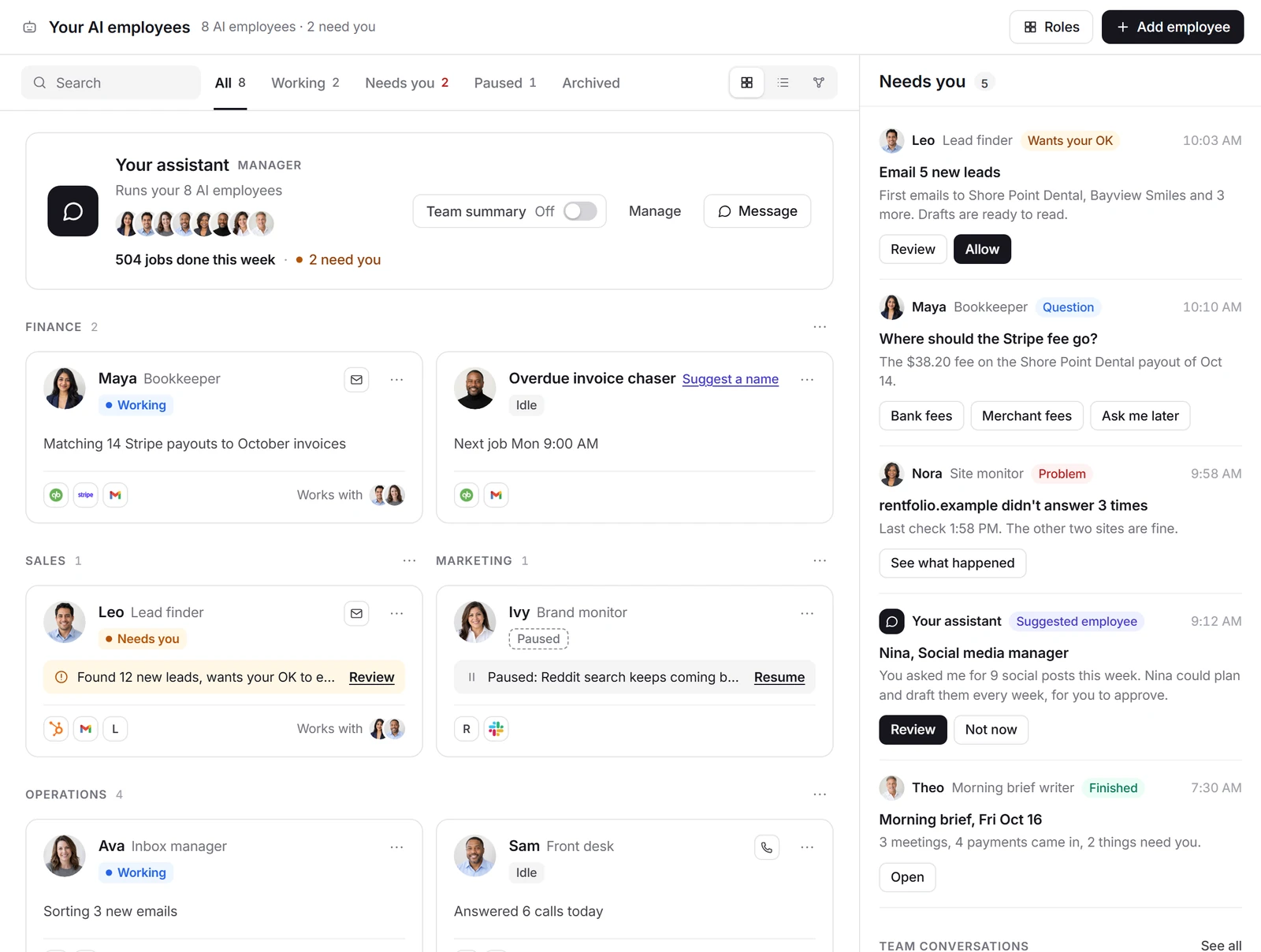
Agents are now AI employees. Each one has a name, a photo and one job. You talk to each one directly, they work together when a job needs it, and your assistant runs the whole team for you.
An AI employee is an AI agent with one job, like Bookkeeper or Front desk. It has a first name, a job title and a department, works in the apps you connect and reports to your assistant.
Most businesses don't need another tool. They need the recurring work off their plate: the books matched every morning, new leads followed up, the inbox sorted, the phone answered. So we rebuilt agents around the way you already think about that work: jobs, each one done by someone on your team. The difference is that these team members are AI, and you can read everything they do.
What is new
- A name, a photo and a job title for every AI employee, like Maya, Bookkeeper, or Leo, Lead finder.
- Add an employee by describing the job. It sets itself up from your conversation.
- One chat with each employee, where you give it work and it posts what it did.
- Your assistant runs the team, hands out work and brings the results back to you.
- Employees work together when a job needs it, and you can read every message.
- Managers and ready-made teams, with an org chart that shows who reports to whom.
- Their own email address and phone number, so customers can reach them directly.
Add an employee by describing the job
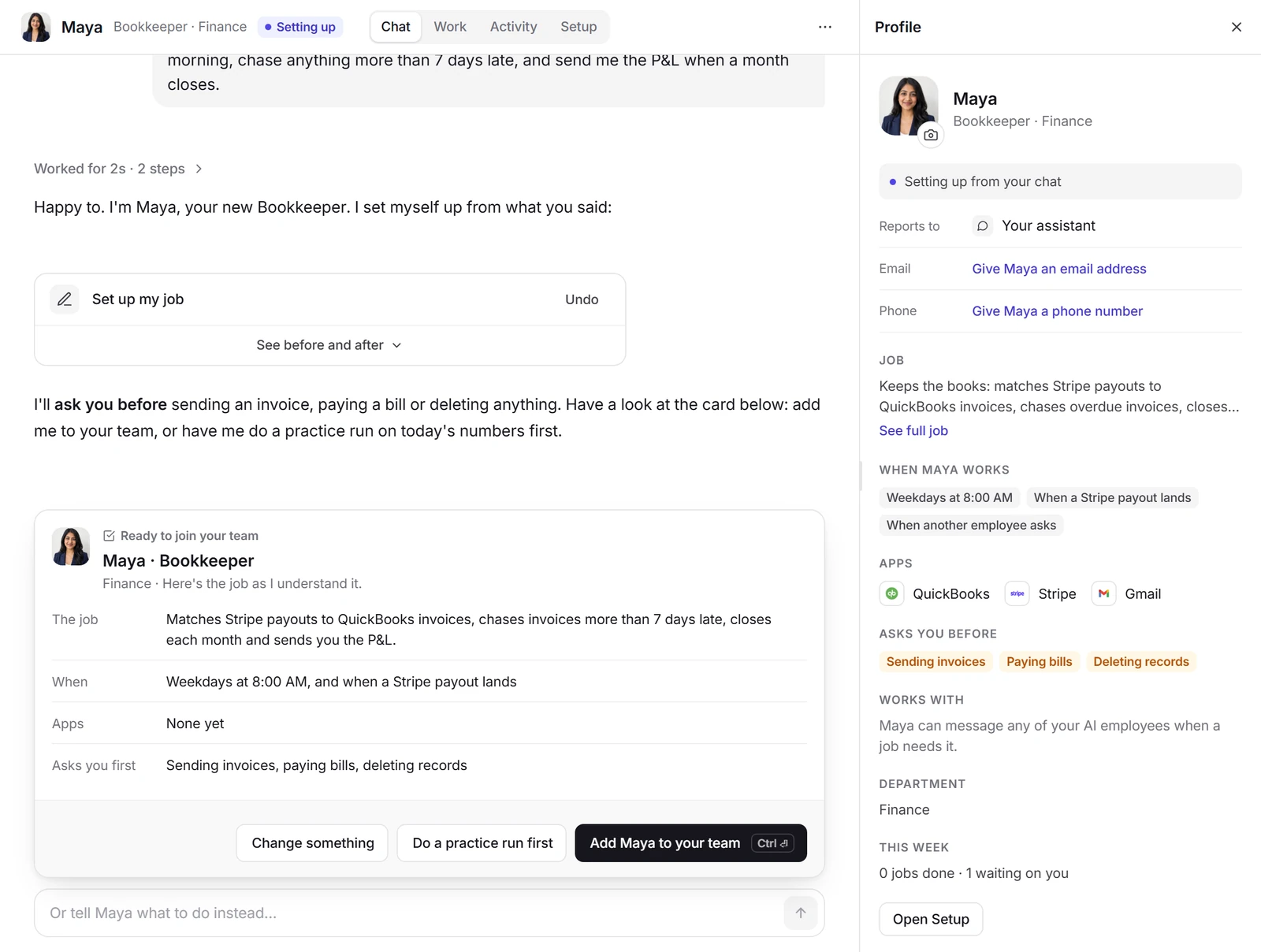
Choose Add employee and say what you need in your own words, like "keep my books: match Stripe payouts to QuickBooks invoices and chase the late ones." Or start from a ready-made role, such as Bookkeeper, Front desk or Lead finder.
Your new employee asks a question or two, sets itself up from the conversation and shows you its job card: the job, when it works, the apps it uses and what it asks you before doing. Change anything you like, have it do a practice run first, then add it to your team. There's no code and nothing to wire up.
Talk to each employee directly
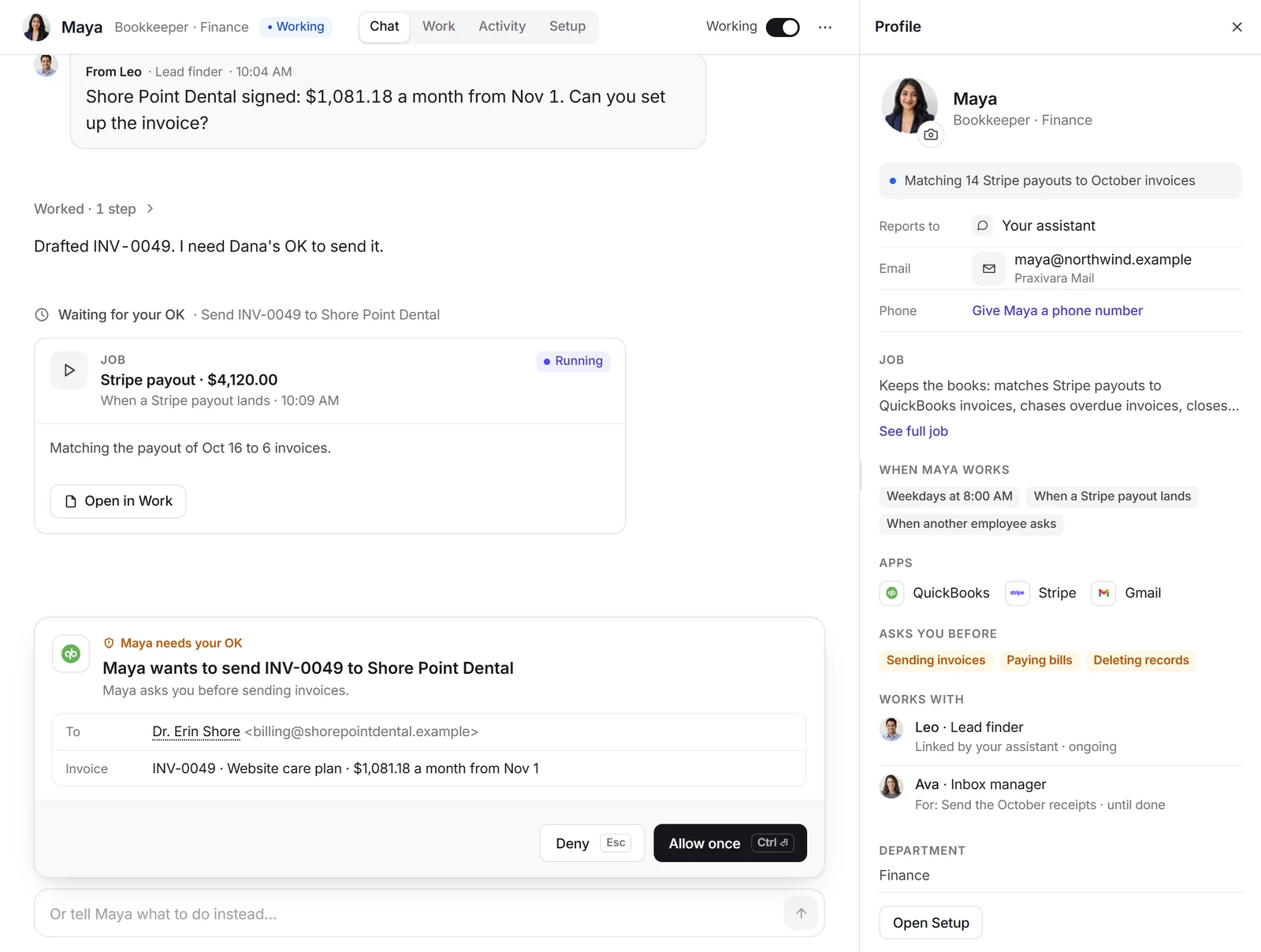
Every AI employee has its own chat. Give it work, ask how a job went, or change how it works, all in plain words. It posts what it did right there, and its reports, files and records are kept in its Work tab.
Each employee also has a profile you can read at a glance: its job, who it reports to, when it works, the apps it uses and what it asks you first. Give an employee its own email address and phone number from its Setup page, so customers and suppliers can reach it directly.
Your assistant runs the team
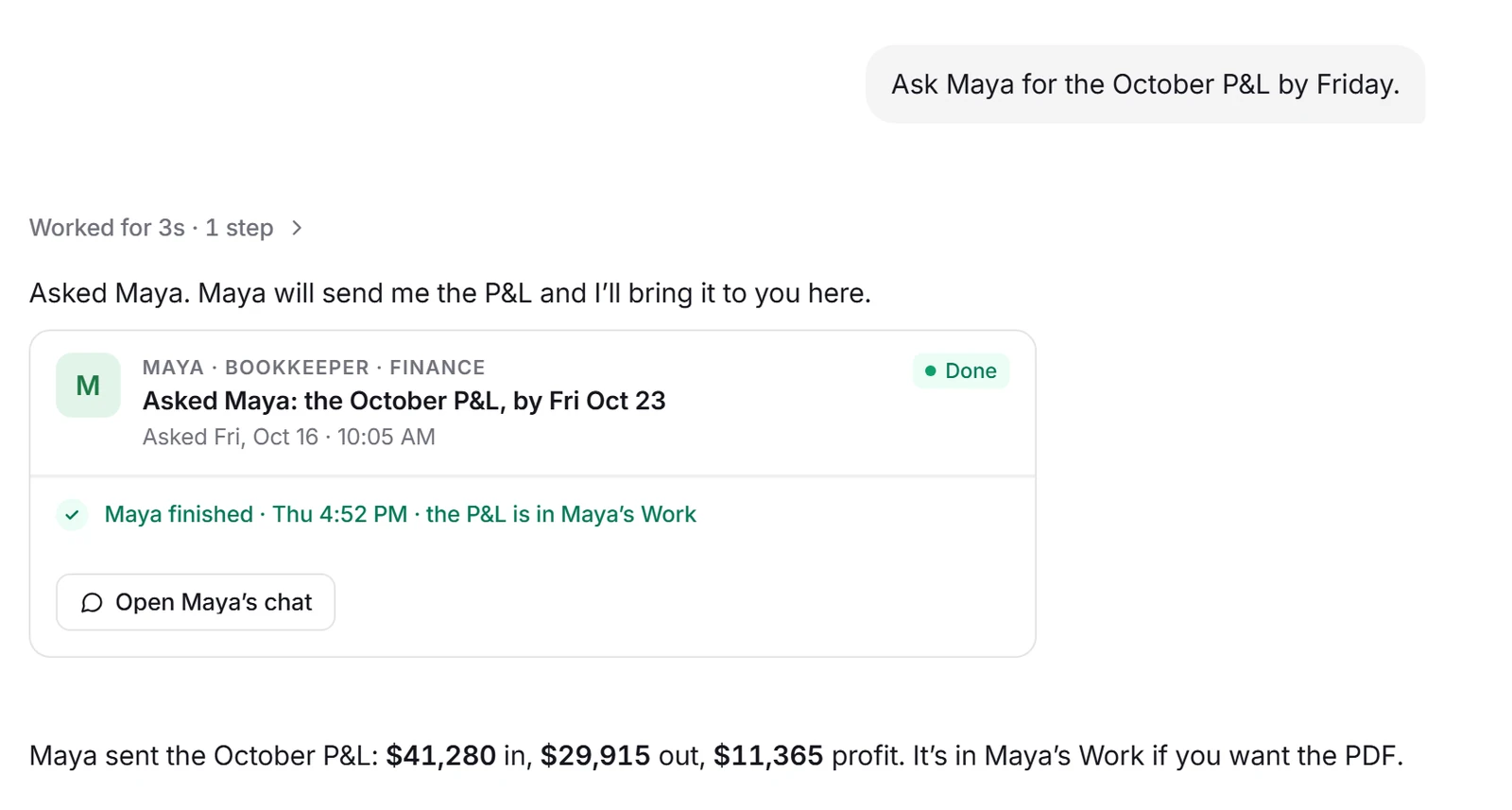
Your assistant is your first employee and the manager of everyone else. You keep one place to ask, however big the team gets. Say "Ask Maya for the October P&L by Friday," and your assistant gets the work to Maya, follows up and brings the result back to you.
When a job keeps coming up, your assistant suggests a new employee with the job already written out. And if you switch it on, it sends you a short team summary each morning: what got done and what needs you.
They work together, and you see every word
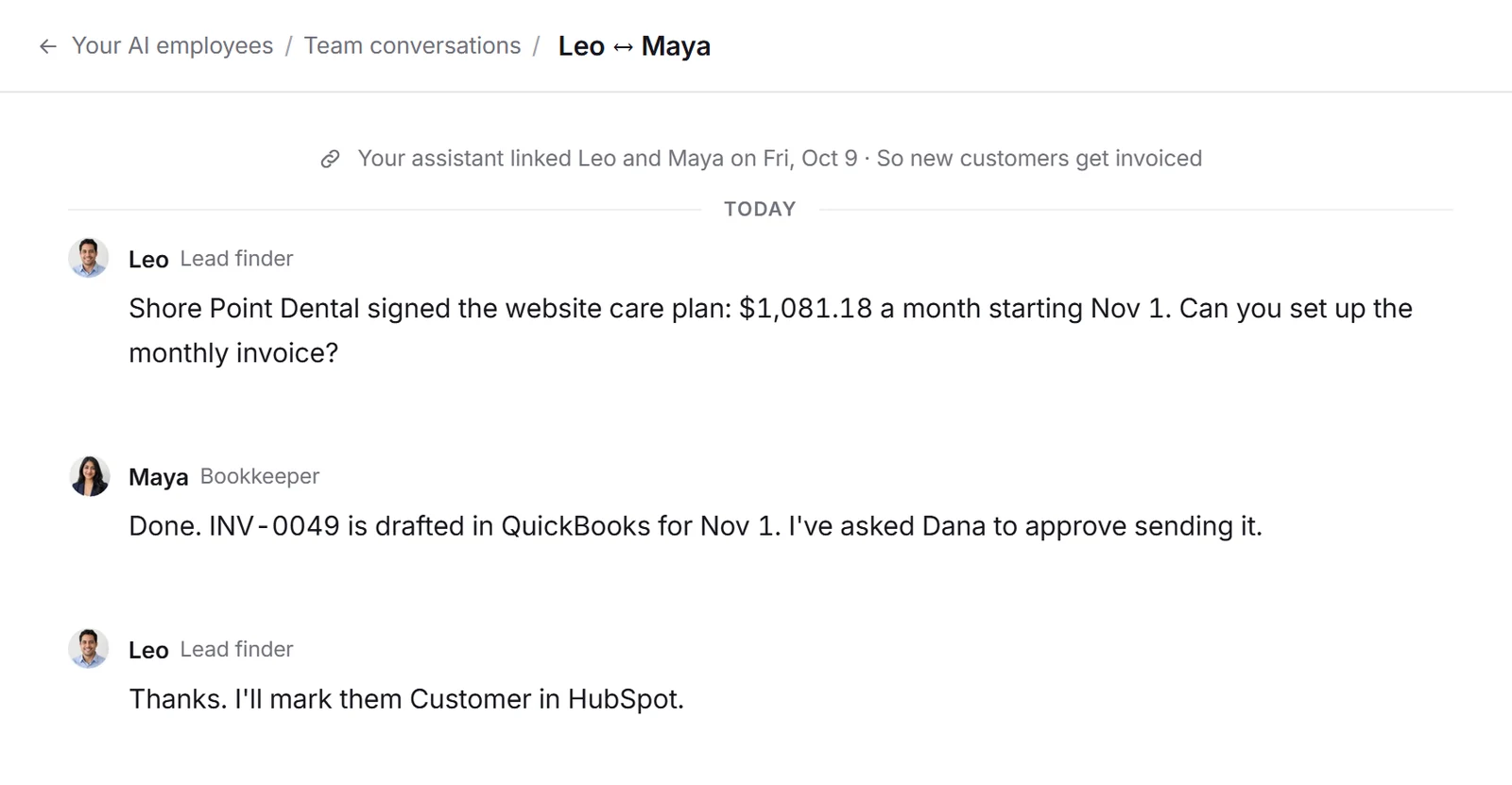
Some jobs need two employees. When Leo, the lead finder, signs a new customer, Maya, the bookkeeper, needs to send the first invoice. Your employees can message each other to hand work along, and every message lands in Team conversations for you to read.
You stay in charge of how they work together. Read any conversation, and block a pair from messaging each other if you'd rather they didn't. What each employee can do without asking you depends on the permission setting you choose for it.
Managers and ready-made teams
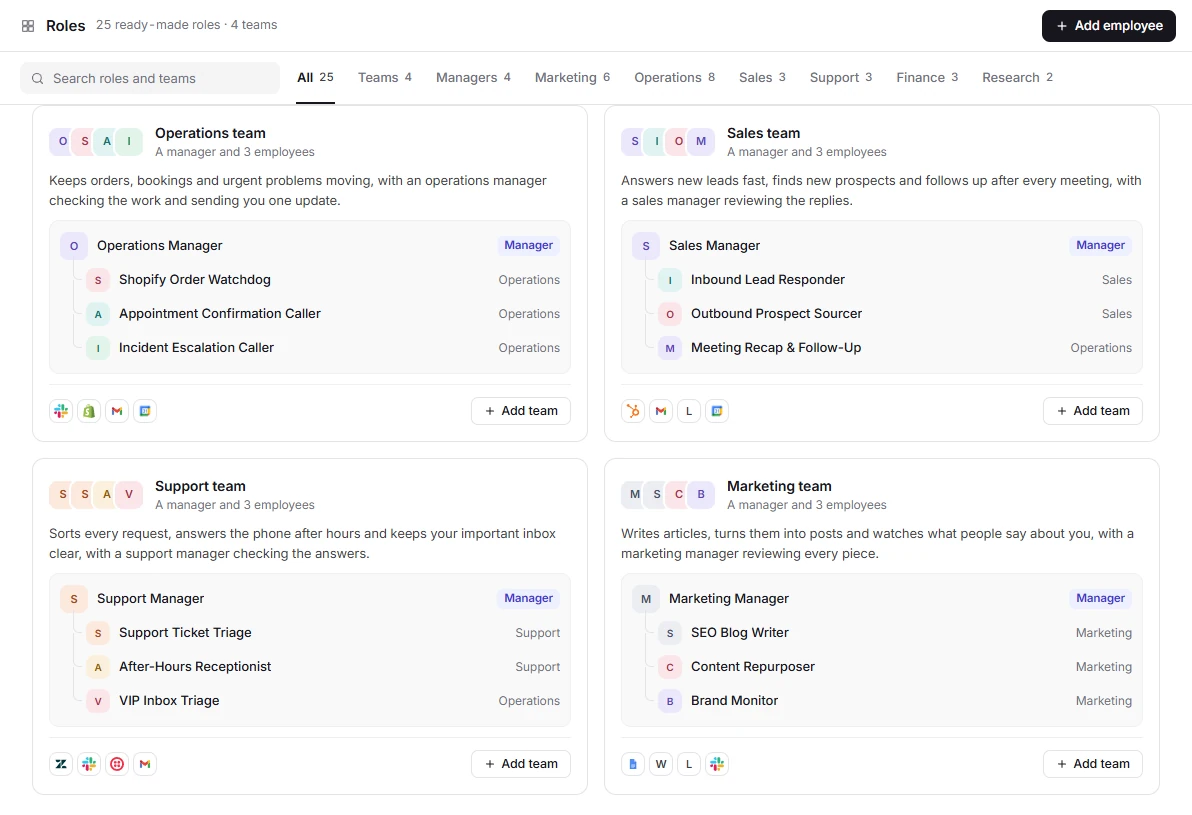
Everyone reports to your assistant unless you pick a manager. Give a group of employees a manager, and it hands out the work and reviews it before it reaches you. The org chart on your AI employees page shows who reports to whom.
Starting from scratch? On the Roles page, add a single ready-made role or a whole team at once, like a sales team with a manager and three employees, each one set up for its job.
Pick the mode that fits
Every employee has its own permission setting, so you decide how much it does on its own. Its job card lists what it asks about first, like sending invoices or paying bills, and you choose whether those requests go up the chain to its manager or straight to you. When a request reaches you, a card waits right above the chat box with exactly what the employee wants to do, and you allow it once or say no. The Needs you list on your AI employees page gathers every request, question and suggestion in one place, on your phone too.
Frequently asked questions
What happened to my agents?
They're now AI employees. Every one joined your team on its own and kept working, with its job and its history. Its old name became its job title, and it suggests a first name you can keep or change.
Are AI employees real people?
No. They're AI that works inside your Praxivara account and the apps you connect. The names and photos make it easy to tell them apart and to know who did what.
Can my teammates use them?
Yes. Share an AI employee with a teammate and choose whether they can view it or use it. With use access, they can chat with it and give it work, and changes to the employee's job come to you.
How many AI employees can I have?
It depends on your plan: 5 on Starter, 10 on Plus, 25 on Pro, 50 on Premium and unlimited on Elite. See pricing for every plan, and AI employees for the full tour.
Add your first AI employee
Tell it the job in plain words, check its job card and add it to your team. Every plan starts with a 7-day free trial.
Get started